VS Code Dev Containers: Why They Matter and How My Dynamic Dev Container Takes Them to the Next Level
If you’ve worked on a development team for any length of time, you’ve probably heard (or said) the phrase:
“It works on my machine.”
This classic headache happens because developers often work in slightly different environments—different versions of libraries, tools, or even operating systems. VS Code Dev Containers were created to solve exactly that problem by letting you define and run your entire development environment inside a container.
What is a VS Code Dev Container?
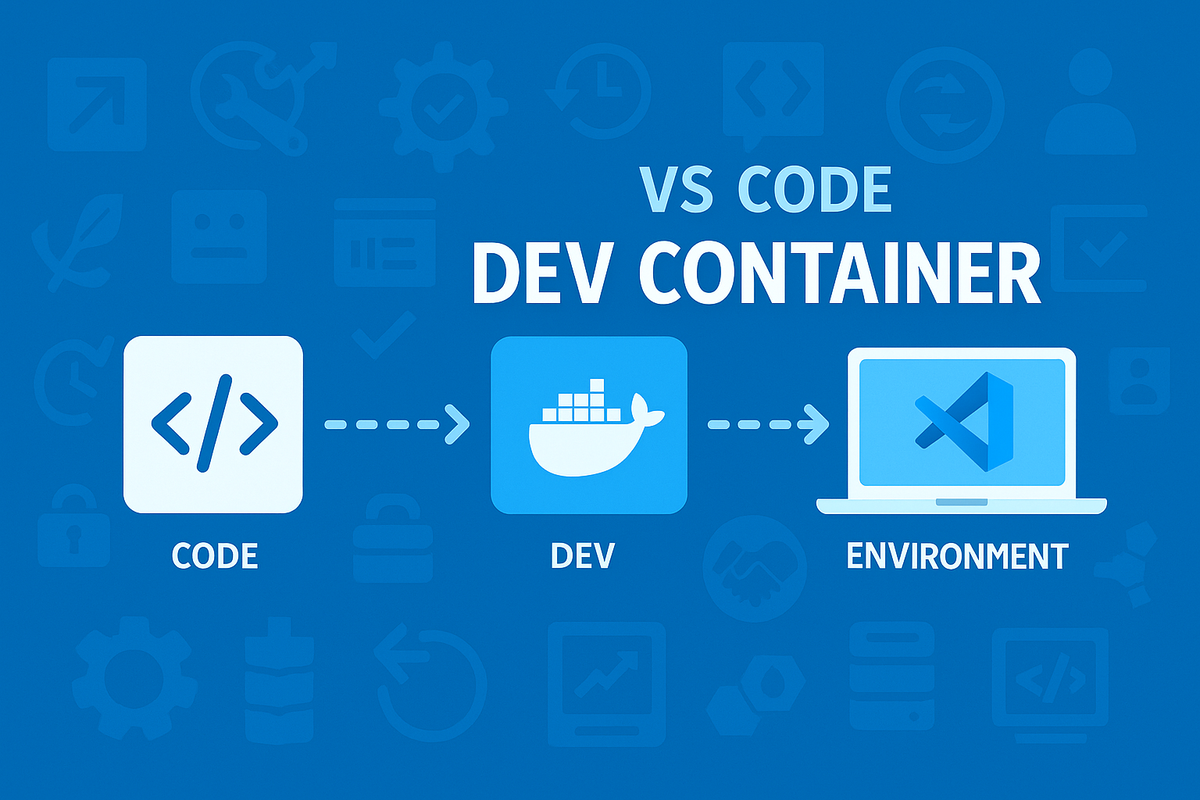
A VS Code Dev Container is a running Docker container configured with all the tools, runtimes, and dependencies your project needs. You connect to it directly from VS Code, and it becomes your full-featured development environment.
Key benefits built into the concept:
- Isolation: Keep project environments separate from your host machine.
- Consistency: Every developer gets the exact same tool versions and configs.
- Reproducibility: Spin up the same environment anywhere with VS Code + Docker.
- Portability: Move between machines or even OSes without setup drift.
Advantages of Using a Dev Container
- Faster Onboarding – New developers can start contributing within minutes instead of hours or days of setup.
- Consistent Tooling – Avoid “works on my machine” issues by locking down versions and dependencies.
- Easier Collaboration – Everyone shares the same baseline environment.
- Safe Experimentation – Try out new tools or dependencies without risking your local setup.
- Automation Friendly – The same definitions can be used in CI pipelines for a true dev/prod parity.
Disadvantages / Trade-Offs
- Performance Overhead: On some platforms (especially Windows), file I/O inside containers can be slower.
- Learning Curve: Developers unfamiliar with Docker or container concepts may need training.
- Complexity: The more tools and dependencies you add, the more you’ll need to maintain in your container definitions.
How Dev Containers Accelerate Onboarding
In a traditional setup, onboarding might involve:
- Installing a dozen tools manually.
- Matching specific versions.
- Troubleshooting environment-specific bugs.
With a Dev Container, a new engineer:
- Installs VS Code and Docker.
- Opens the repository.
- Clicks “Reopen in Container.”
The environment builds, dependencies install, and the developer is ready to code with the exact same setup as the rest of the team.
My Dynamic Dev Container
While many Dev Container templates exist, I built Dynamic Dev Container entirely from scratch to address gaps I saw in existing solutions. It’s not based on any other repository, and it’s constantly updated and highly configurable.
Key Features:
- Built on Rocky Linux 10 for enterprise-grade stability and security.
- TUI (Terminal User Interface) Installer with mouse + keyboard support for guided setup.
- Dynamic Tool Selection – Choose from a curated set of languages, infrastructure tools, Kubernetes utilities, and CLI enhancements.
- Smart Versioning – Select tool versions interactively, with real-time data from the mise tool manager.
- Security-First – Regularly rebuilt images with the latest patches.
- Automatic VS Code Extension Mapping – Installs the right extensions based on your selected tools.
- Highly Customizable – Generates
.devcontainer/devcontainer.json,.mise.toml, and helper scripts tailored to your project.
Included tooling categories:
- Languages: Go, .NET, Node.js, Python.
- Infra/Cloud: OpenTofu, OpenBao, Packer.
- Kubernetes: kubectl, Helm, k9s, krew plugins.
- CLI Utilities: gitui, micro, PowerShell, tealdeer.
- Baked-in Shell Enhancements: starship prompt, zoxide, fzf, lsd, zsh plugins.
Why This Matters
A well-designed Dev Container like Dynamic Dev Container doesn’t just give you consistency—it empowers your developers:
- Reduces onboarding time from hours to minutes.
- Eliminates configuration drift across machines and OSes.
- Encourages experimentation with new tools in a safe, isolated space.
- Brings security best practices into the development workflow by default.
Try It Out
You can get started with my Dynamic Dev Container in just a few steps:
git clone https://github.com/sarg3nt/dynamic-dev-container.git
cd dynamic-dev-container
./install.sh
Follow the guided TUI, select your tools, and open your project in VS Code. In minutes, you’ll be running in a fully configured, production-ready dev environment.
If you want your team to move faster, with fewer environment issues and stronger security practices, Dev Containers are the way forward—and Dynamic Dev Container is built to make that experience smooth, powerful, and tailored to your needs.